


Tags
Tags
Tags
Managing and attaching trade tags
Managing and attaching trade tags
Managing and attaching trade tags
Lesson 3
Lesson 3
20 min
20 min
Tags Management
Tags Management
Tags Management
To navigate to the tags section of TradeZella, go to the settings and find the tags management tab. This is where you will create, edit, and delete your trade tags.
To navigate to the tags section of TradeZella, go to the settings and find the tags management tab. This is where you will create, edit, and delete your trade tags.
To navigate to the tags section of TradeZella, go to the settings and find the tags management tab. This is where you will create, edit, and delete your trade tags.
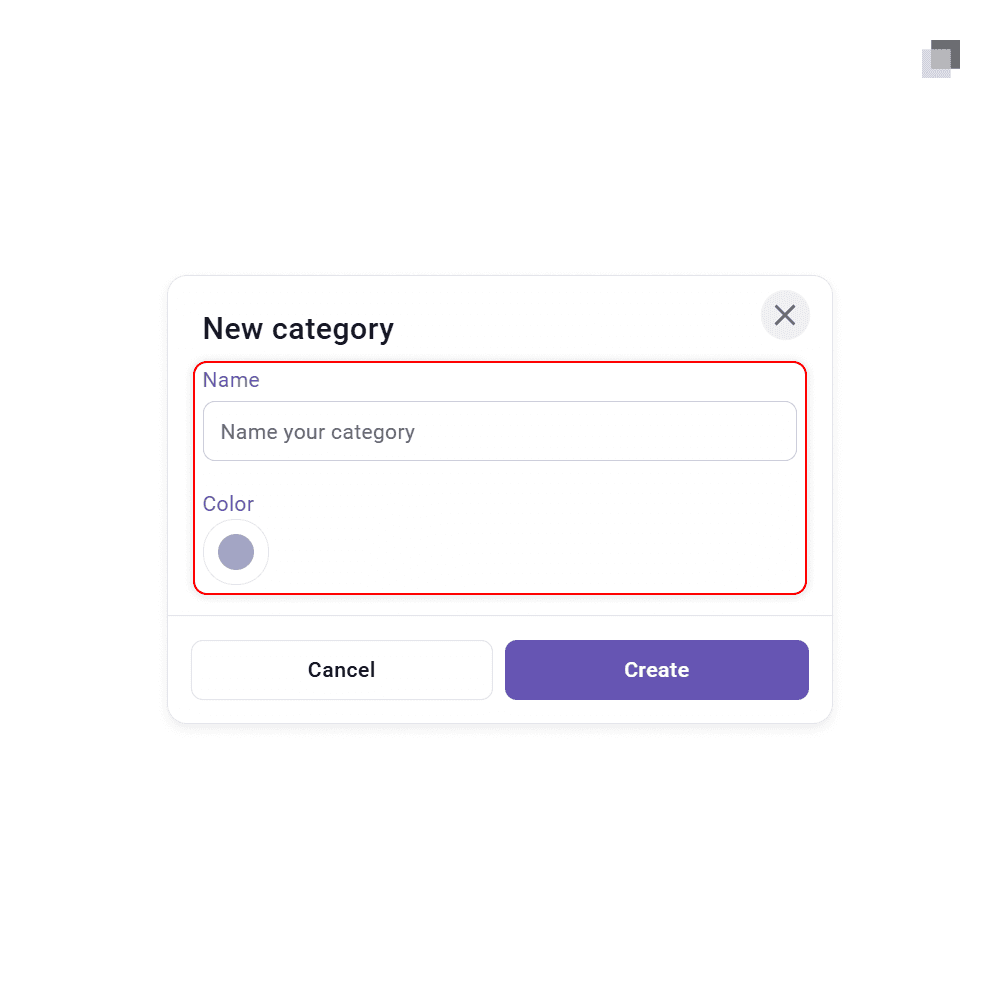
Before tags are created, you must first establish the categories they will exist within. Click the add categories button in the top right of the page. That is where you will name the category and select a color for easy identification. Categories are the the general topics that tags will fall under such as bias, confirmation, entry, and more.
Before tags are created, you must first establish the categories they will exist within. Click the add categories button in the top right of the page. That is where you will name the category and select a color for easy identification. Categories are the the general topics that tags will fall under such as bias, confirmation, entry, and more.
Before tags are created, you must first establish the categories they will exist within. Click the add categories button in the top right of the page. That is where you will name the category and select a color for easy identification. Categories are the the general topics that tags will fall under such as bias, confirmation, entry, and more.
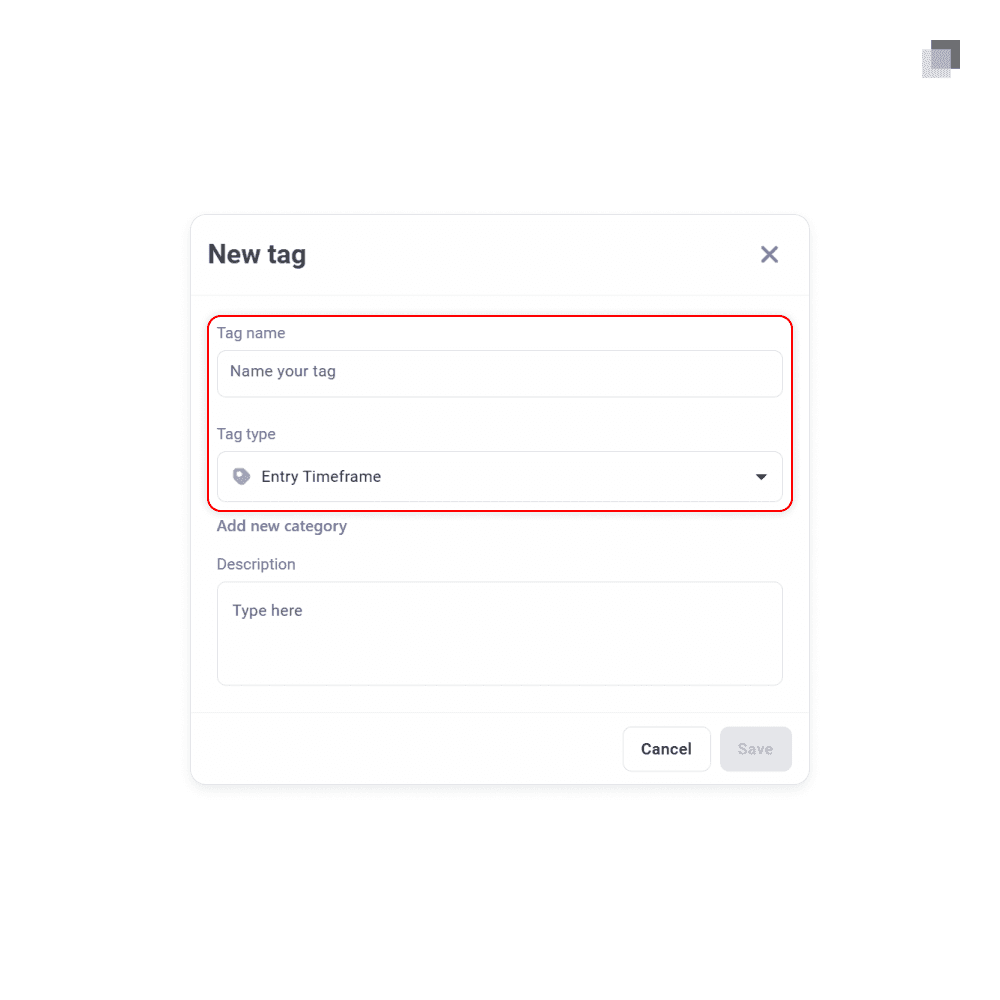
The next step is to create the specific tags to place within the categories. Click the add tag button in the top right of the page. Name the tag and place it under the relevant category. Once this is done, it will be saved to your existing tags and ready to use.
The next step is to create the specific tags to place within the categories. Click the add tag button in the top right of the page. Name the tag and place it under the relevant category. Once this is done, it will be saved to your existing tags and ready to use.
The next step is to create the specific tags to place within the categories. Click the add tag button in the top right of the page. Name the tag and place it under the relevant category. Once this is done, it will be saved to your existing tags and ready to use.
Copy and Paste
Copy and Paste
Copy and Paste
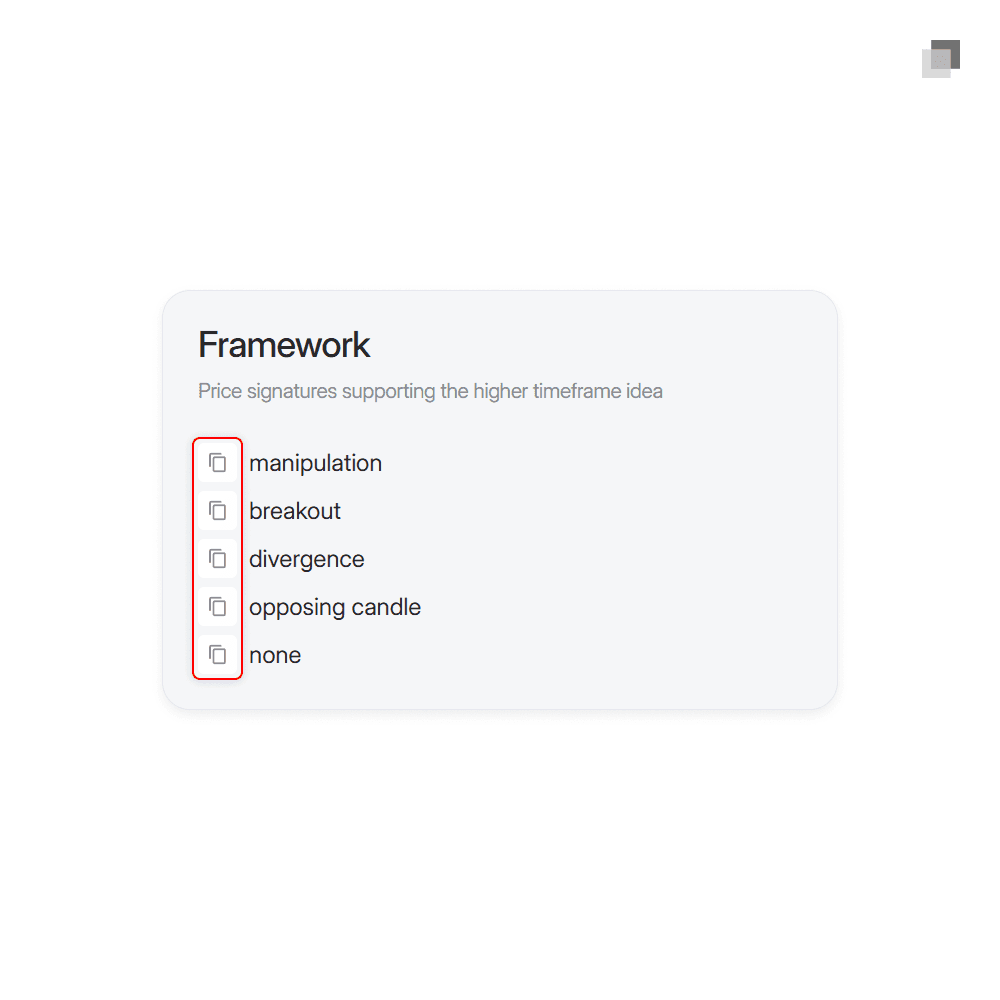
To make this process more simple for you, we have a page inside the platform where you can copy and paste the tags of your choice. These are categories and tags that will be valuable to follow.
To make this process more simple for you, we have a page inside the platform where you can copy and paste the tags of your choice. These are categories and tags that will be valuable to follow.
To make this process more simple for you, we have a page inside the platform where you can copy and paste the tags of your choice. These are categories and tags that will be valuable to follow.
Go to the tag you want to save, copy the text from our platform, and paste it into TradeZella under the correct category. Continue this process until you have a stack of tags that will cover every part of your trading you want to keep track of. You will understand the purpose after completing this lesson.
Go to the tag you want to save, copy the text from our platform, and paste it into TradeZella under the correct category. Continue this process until you have a stack of tags that will cover every part of your trading you want to keep track of. You will understand the purpose after completing this lesson.
Go to the tag you want to save, copy the text from our platform, and paste it into TradeZella under the correct category. Continue this process until you have a stack of tags that will cover every part of your trading you want to keep track of. You will understand the purpose after completing this lesson.
Attaching Tags
Attaching Tags
Attaching Tags
After you have created all the tags of your choice, you are ready to begin attaching them to your trades. This can be done in two ways.
After you have created all the tags of your choice, you are ready to begin attaching them to your trades. This can be done in two ways.
After you have created all the tags of your choice, you are ready to begin attaching them to your trades. This can be done in two ways.
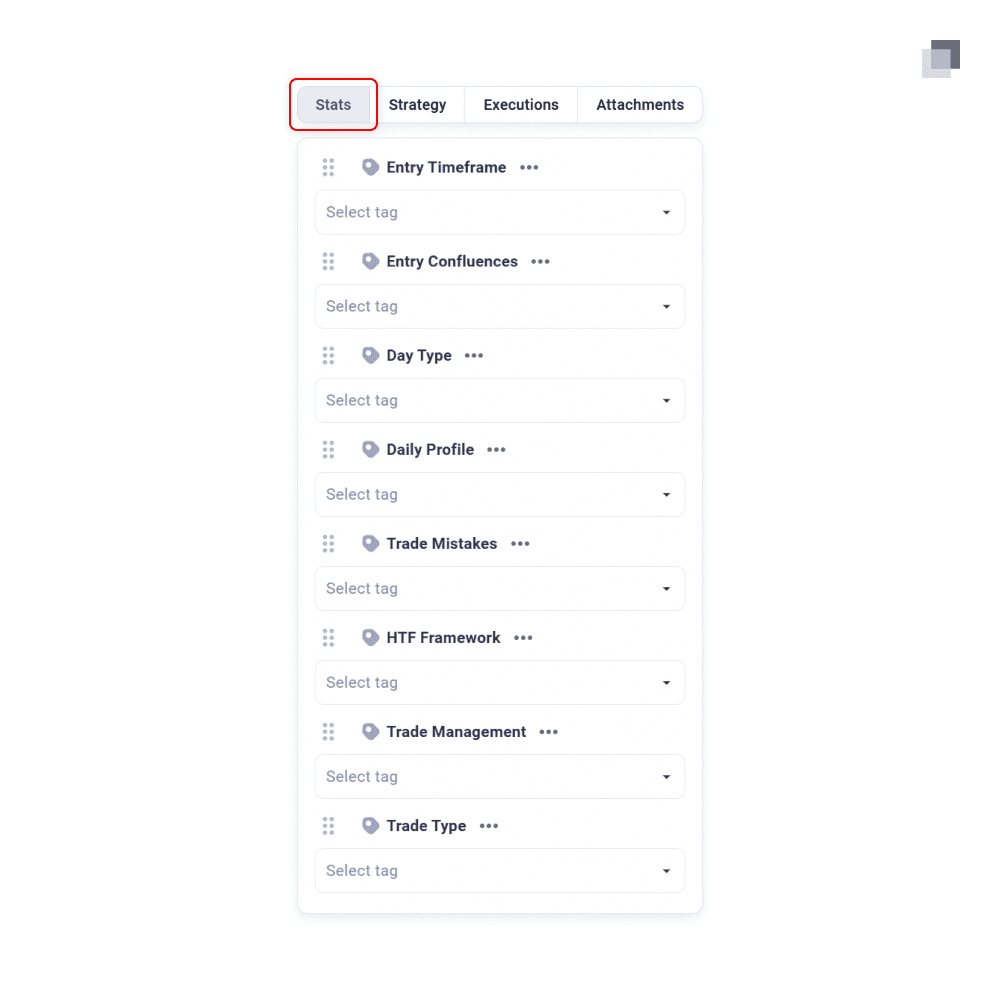
The most common way you will be attaching tags is on an individual trade basis. Once you execute a trade and it is imported into your TradeZella account, click on the specific execution to find yourself in the detailed view. Scroll down in the stats tab until you end up in the tags section. There you will view the created categories. Once a category is selected, a dropdown list will appear displaying all the tag options to attach. Choose the ones which apply to the trade being viewed.
The most common way you will be attaching tags is on an individual trade basis. Once you execute a trade and it is imported into your TradeZella account, click on the specific execution to find yourself in the detailed view. Scroll down in the stats tab until you end up in the tags section. There you will view the created categories. Once a category is selected, a dropdown list will appear displaying all the tag options to attach. Choose the ones which apply to the trade being viewed.
The most common way you will be attaching tags is on an individual trade basis. Once you execute a trade and it is imported into your TradeZella account, click on the specific execution to find yourself in the detailed view. Scroll down in the stats tab until you end up in the tags section. There you will view the created categories. Once a category is selected, a dropdown list will appear displaying all the tag options to attach. Choose the ones which apply to the trade being viewed.
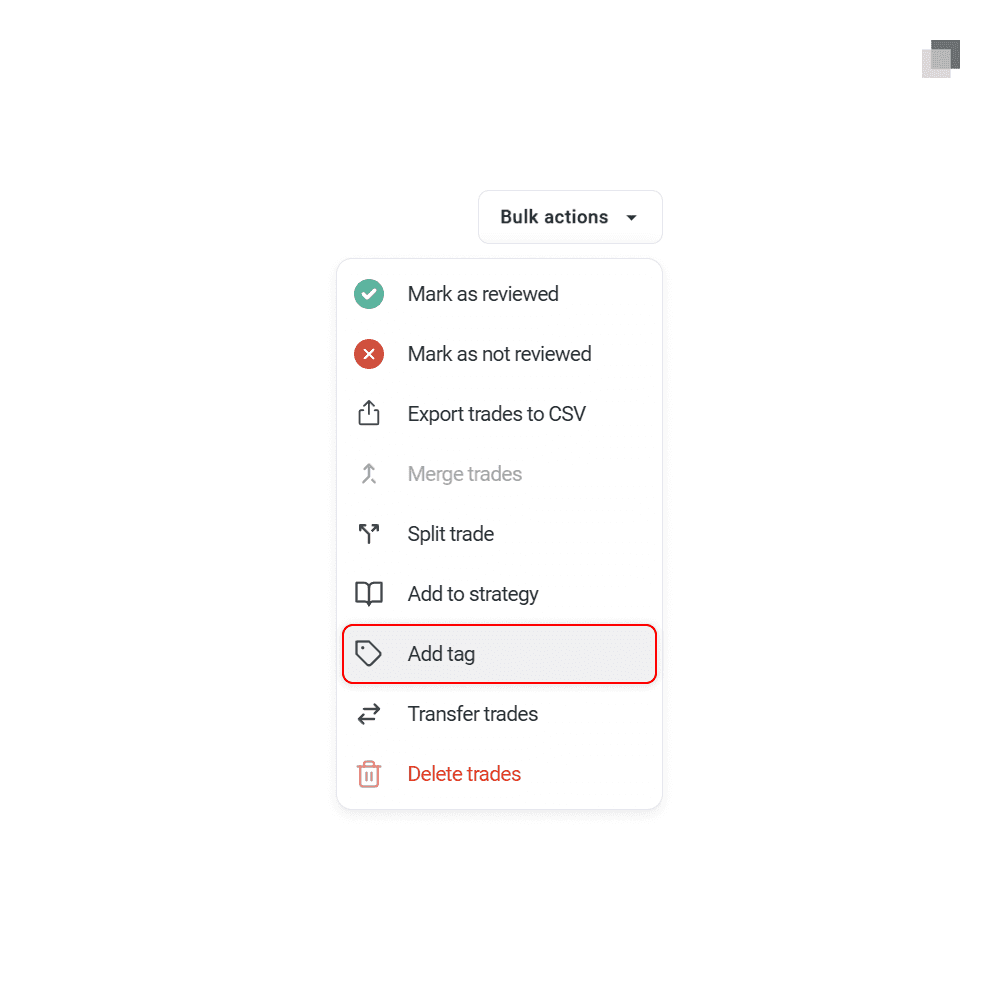
Tags can also be added to multiple trades at once through a bulk action. In the trade view tab, the entire table or specific trades in the table can be selected together. The top right will show a bulk actions button which has the option to add a tag to the selected set of trades. This is a faster way to add tags in specific circumstances, but overall less effective since the details of the executions are not shown.
Tags can also be added to multiple trades at once through a bulk action. In the trade view tab, the entire table or specific trades in the table can be selected together. The top right will show a bulk actions button which has the option to add a tag to the selected set of trades. This is a faster way to add tags in specific circumstances, but overall less effective since the details of the executions are not shown.
Tags can also be added to multiple trades at once through a bulk action. In the trade view tab, the entire table or specific trades in the table can be selected together. The top right will show a bulk actions button which has the option to add a tag to the selected set of trades. This is a faster way to add tags in specific circumstances, but overall less effective since the details of the executions are not shown.
Filtering Trades
Filtering Trades
Filtering Trades
The purpose of attaching tags to executions is to build the ability to filter your trades in a personalized way. Within any section of TradeZella which displays your trades or metrics, you can use the top header filter to group your executions by tags. This can also be done alongside any other general filter option for further refinement.
The purpose of attaching tags to executions is to build the ability to filter your trades in a personalized way. Within any section of TradeZella which displays your trades or metrics, you can use the top header filter to group your executions by tags. This can also be done alongside any other general filter option for further refinement.
The purpose of attaching tags to executions is to build the ability to filter your trades in a personalized way. Within any section of TradeZella which displays your trades or metrics, you can use the top header filter to group your executions by tags. This can also be done alongside any other general filter option for further refinement.

Doing this provides valuable information as it will reveal the criteria of your trading that yields the highest and lowest value of results. By testing different combinations through each category, you build a direct perspective on the parts of your model that work and others that do not. Both give you direction on where your ongoing focus should be.
Doing this provides valuable information as it will reveal the criteria of your trading that yields the highest and lowest value of results. By testing different combinations through each category, you build a direct perspective on the parts of your model that work and others that do not. Both give you direction on where your ongoing focus should be.
Doing this provides valuable information as it will reveal the criteria of your trading that yields the highest and lowest value of results. By testing different combinations through each category, you build a direct perspective on the parts of your model that work and others that do not. Both give you direction on where your ongoing focus should be.
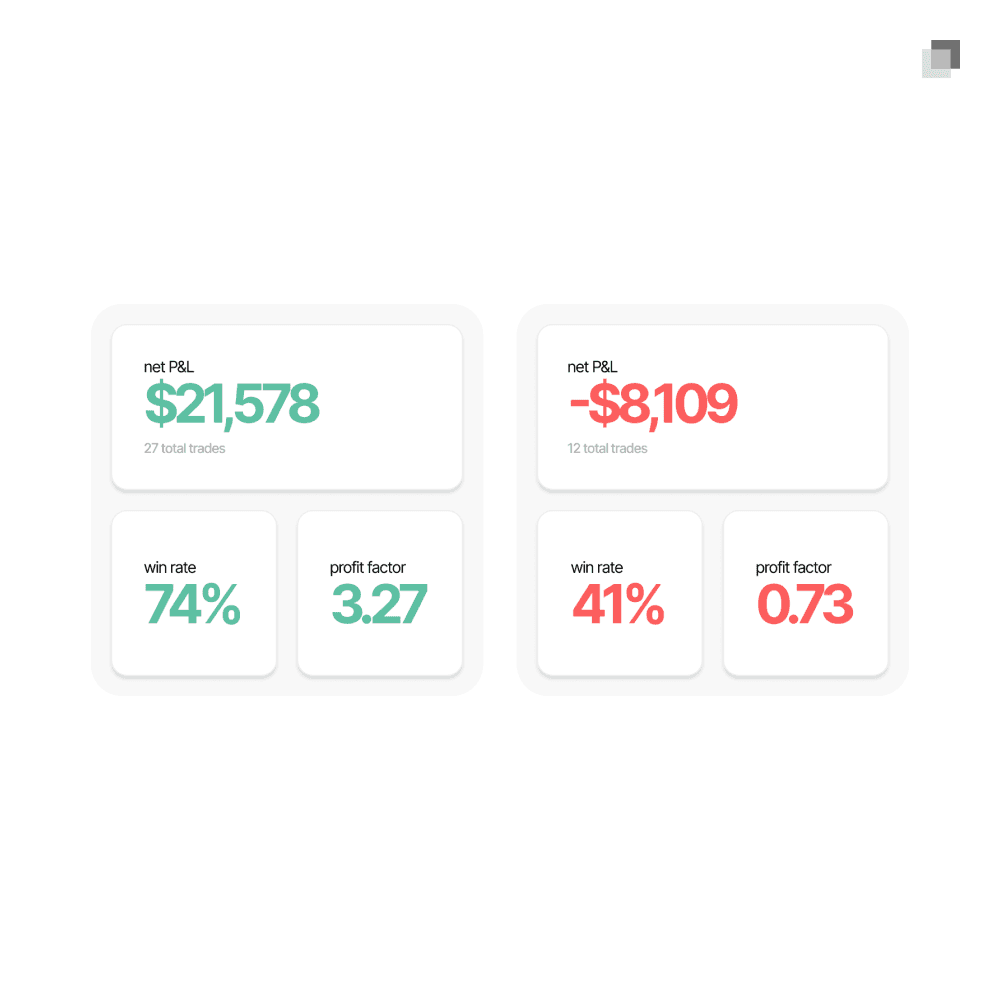
Once you build either a sufficient live or backtested trade sample size with properly tagged trades, try this exercise. Find the combination of tags through each step of your model that yields the most profitable metrics and the others that output the least profitable metrics. This will quickly reveal your highest quality setup in the market and areas that need improvement.
Once you build either a sufficient live or backtested trade sample size with properly tagged trades, try this exercise. Find the combination of tags through each step of your model that yields the most profitable metrics and the others that output the least profitable metrics. This will quickly reveal your highest quality setup in the market and areas that need improvement.
Once you build either a sufficient live or backtested trade sample size with properly tagged trades, try this exercise. Find the combination of tags through each step of your model that yields the most profitable metrics and the others that output the least profitable metrics. This will quickly reveal your highest quality setup in the market and areas that need improvement.

The standard for trading education and guidance
2026 The Market Lens - All Rights Reserved
The standard for trading education and guidance
2026 The Market Lens - All Rights Reserved
The standard for trading education and guidance