


Setup
Setup
Setup
Setting up your TradeZella account
Setting up your TradeZella account
Setting up your TradeZella account
Lesson 1
Lesson 1
20 min
20 min
Sign In
Sign In
Sign In
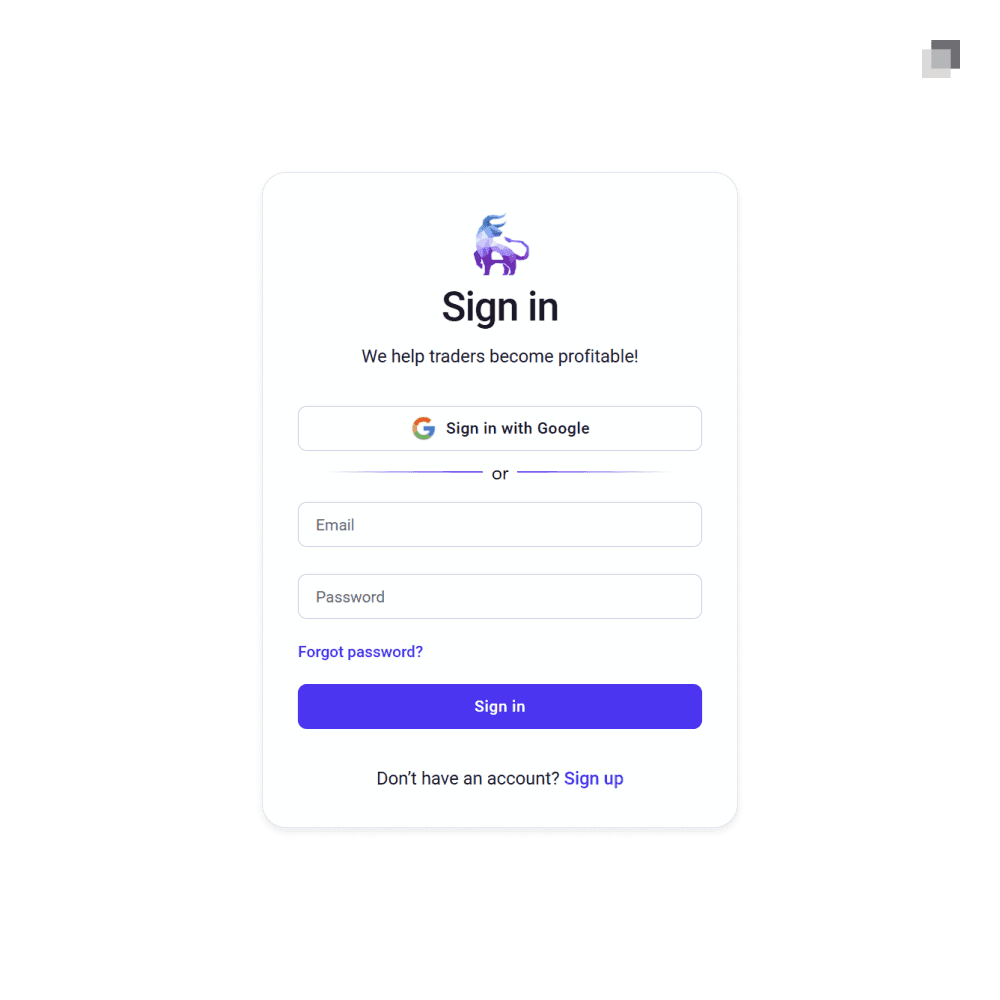
To get started with TradeZella, you must first sign into your account. Navigate to the TradeZella website and click the sign in button in the top right corner of the page. Fill in your account information and enter into your personal account. You will land in your home dashboard which serves as the hub for all your trading activities.
To get started with TradeZella, you must first sign into your account. Navigate to the TradeZella website and click the sign in button in the top right corner of the page. Fill in your account information and enter into your personal account. You will land in your home dashboard which serves as the hub for all your trading activities.
To get started with TradeZella, you must first sign into your account. Navigate to the TradeZella website and click the sign in button in the top right corner of the page. Fill in your account information and enter into your personal account. You will land in your home dashboard which serves as the hub for all your trading activities.
Matching Account
Matching Account
Matching Account
Go to your TradeZella dashboard. Click on your profile picture in the bottom left and navigate to the settings. Inside of the profile settings, ensure that your profile picture and username match that of your Discord account. Also, understand that your actual username which is being referred to is different than your Discord display name. This allows us to easily find your personal journal within TradeZella when conducting stage reviews. If this is not done, there will be friction for mentors trying to identify your TradeZella account and journal.
Go to your TradeZella dashboard. Click on your profile picture in the bottom left and navigate to the settings. Inside of the profile settings, ensure that your profile picture and username match that of your Discord account. Also, understand that your actual username which is being referred to is different than your Discord display name. This allows us to easily find your personal journal within TradeZella when conducting stage reviews. If this is not done, there will be friction for mentors trying to identify your TradeZella account and journal.
Go to your TradeZella dashboard. Click on your profile picture in the bottom left and navigate to the settings. Inside of the profile settings, ensure that your profile picture and username match that of your Discord account. Also, understand that your actual username which is being referred to is different than your Discord display name. This allows us to easily find your personal journal within TradeZella when conducting stage reviews. If this is not done, there will be friction for mentors trying to identify your TradeZella account and journal.
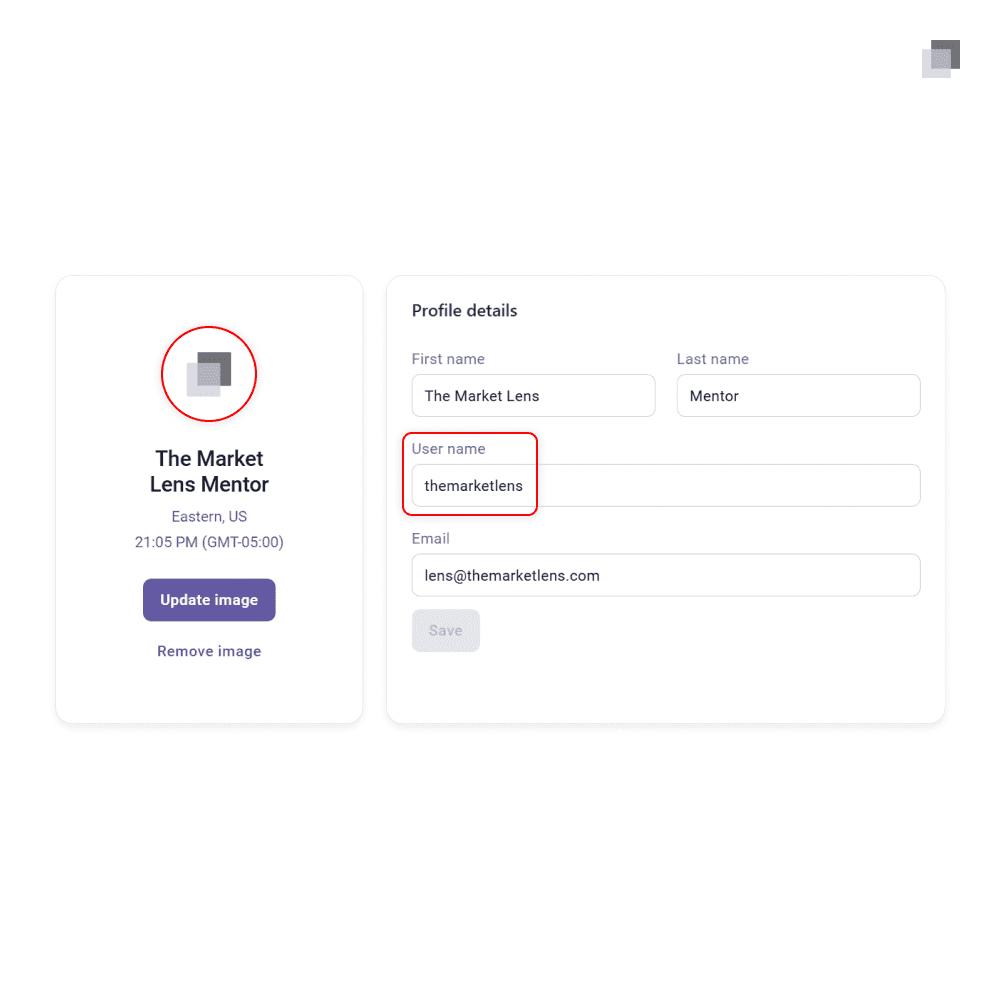
Some usernames may need to be unique within TradeZella. You have two options in the case you find that your Discord username is taken in TradeZella. Either change your Discord username to something available in TradeZella or add a single number to the end of your username in TradeZella. Both ways allow a matching username without conflict.
Some usernames may need to be unique within TradeZella. You have two options in the case you find that your Discord username is taken in TradeZella. Either change your Discord username to something available in TradeZella or add a single number to the end of your username in TradeZella. Both ways allow a matching username without conflict.
Some usernames may need to be unique within TradeZella. You have two options in the case you find that your Discord username is taken in TradeZella. Either change your Discord username to something available in TradeZella or add a single number to the end of your username in TradeZella. Both ways allow a matching username without conflict.
Auto-Sync Broker
Auto-Sync Broker
Auto-Sync Broker
The most efficient way to have trades imported into your account is to auto-sync to your brokerage. This means that each day will automatically input any new trades placed on your account without requiring manual intervention. This is the recommended method to set up when allowed.
The most efficient way to have trades imported into your account is to auto-sync to your brokerage. This means that each day will automatically input any new trades placed on your account without requiring manual intervention. This is the recommended method to set up when allowed.
The most efficient way to have trades imported into your account is to auto-sync to your brokerage. This means that each day will automatically input any new trades placed on your account without requiring manual intervention. This is the recommended method to set up when allowed.
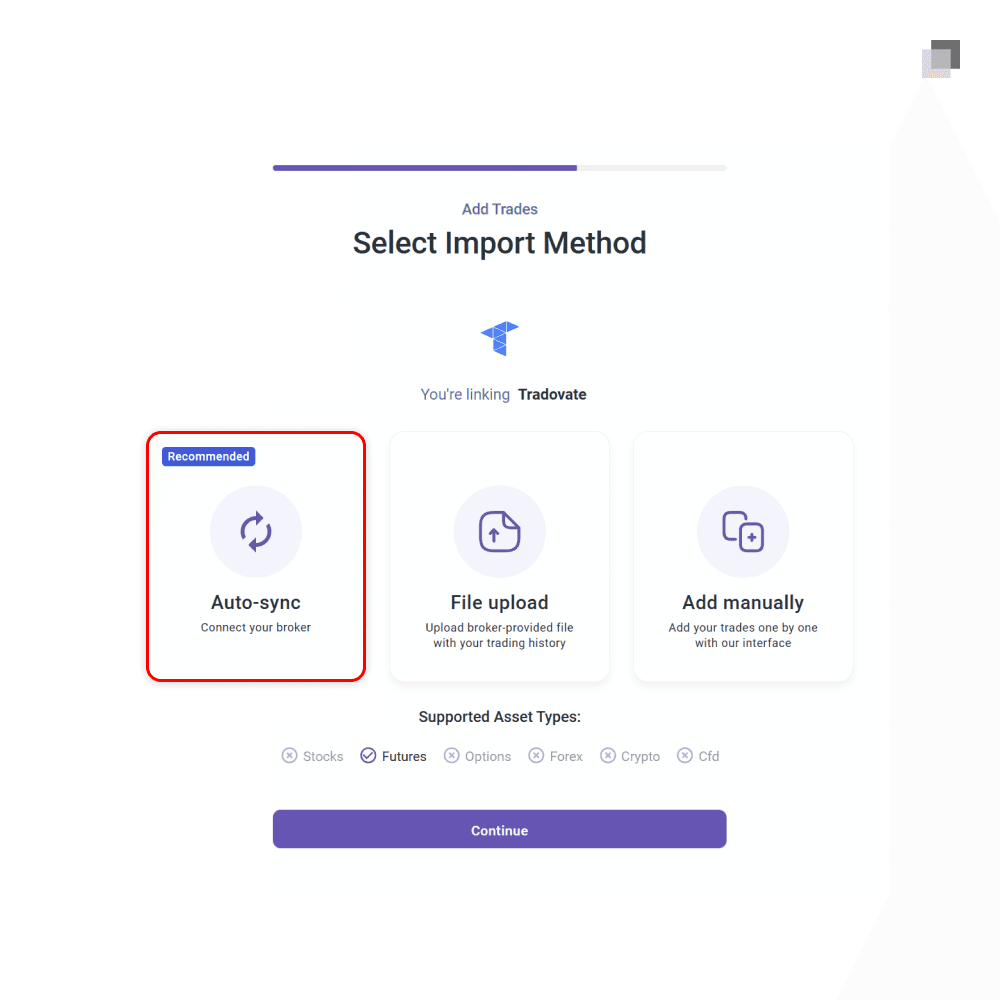
Move to your settings and find the accounts tab. Click the add account button in the top right of the section and choose your brokerage that you want to connect to. Once the auto-sync option is selected, you will be prompted to follow multiple steps to connect the account. TradeZella will guide you clearly through this process. Enable auto-sync for daily imports and your executions will automatically be entered into your journal each day.
Move to your settings and find the accounts tab. Click the add account button in the top right of the section and choose your brokerage that you want to connect to. Once the auto-sync option is selected, you will be prompted to follow multiple steps to connect the account. TradeZella will guide you clearly through this process. Enable auto-sync for daily imports and your executions will automatically be entered into your journal each day.
Move to your settings and find the accounts tab. Click the add account button in the top right of the section and choose your brokerage that you want to connect to. Once the auto-sync option is selected, you will be prompted to follow multiple steps to connect the account. TradeZella will guide you clearly through this process. Enable auto-sync for daily imports and your executions will automatically be entered into your journal each day.
Manual and CSV Imports
Manual and CSV Imports
Manual and CSV Imports
If necessary, trades can also be entered manually through either CSV exports or individual inputs.
If necessary, trades can also be entered manually through either CSV exports or individual inputs.
If necessary, trades can also be entered manually through either CSV exports or individual inputs.
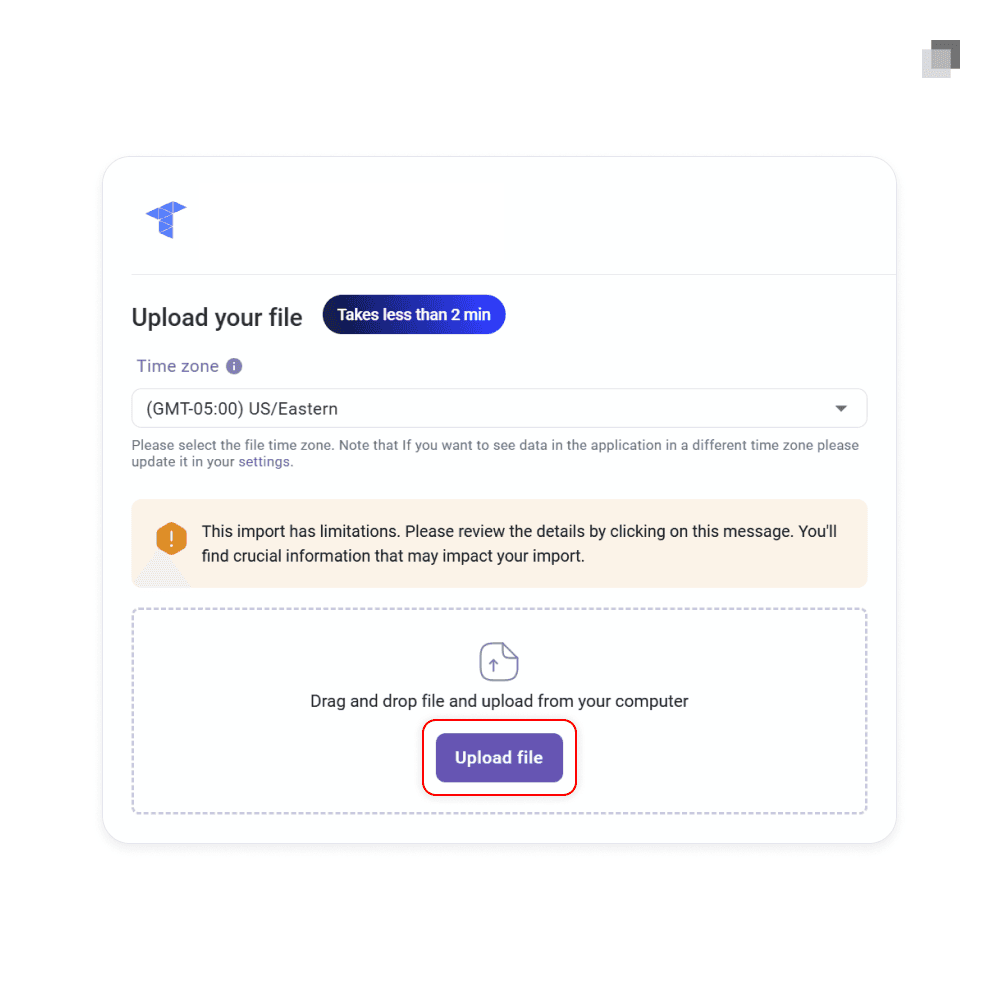
CSV files can be exported from your brokerage. They are most often found in your brokerage account settings and inside the orders tab where you will look for a button to export. Once you select the date range of orders or trade history you would like to import into TradeZella, export the CSV file and save it onto your device. Back inside TradeZella, click the plus button under your desired account and click the upload CSV file button. All your trades within the file will be brought in bulk to the account.
CSV files can be exported from your brokerage. They are most often found in your brokerage account settings and inside the orders tab where you will look for a button to export. Once you select the date range of orders or trade history you would like to import into TradeZella, export the CSV file and save it onto your device. Back inside TradeZella, click the plus button under your desired account and click the upload CSV file button. All your trades within the file will be brought in bulk to the account.
CSV files can be exported from your brokerage. They are most often found in your brokerage account settings and inside the orders tab where you will look for a button to export. Once you select the date range of orders or trade history you would like to import into TradeZella, export the CSV file and save it onto your device. Back inside TradeZella, click the plus button under your desired account and click the upload CSV file button. All your trades within the file will be brought in bulk to the account.
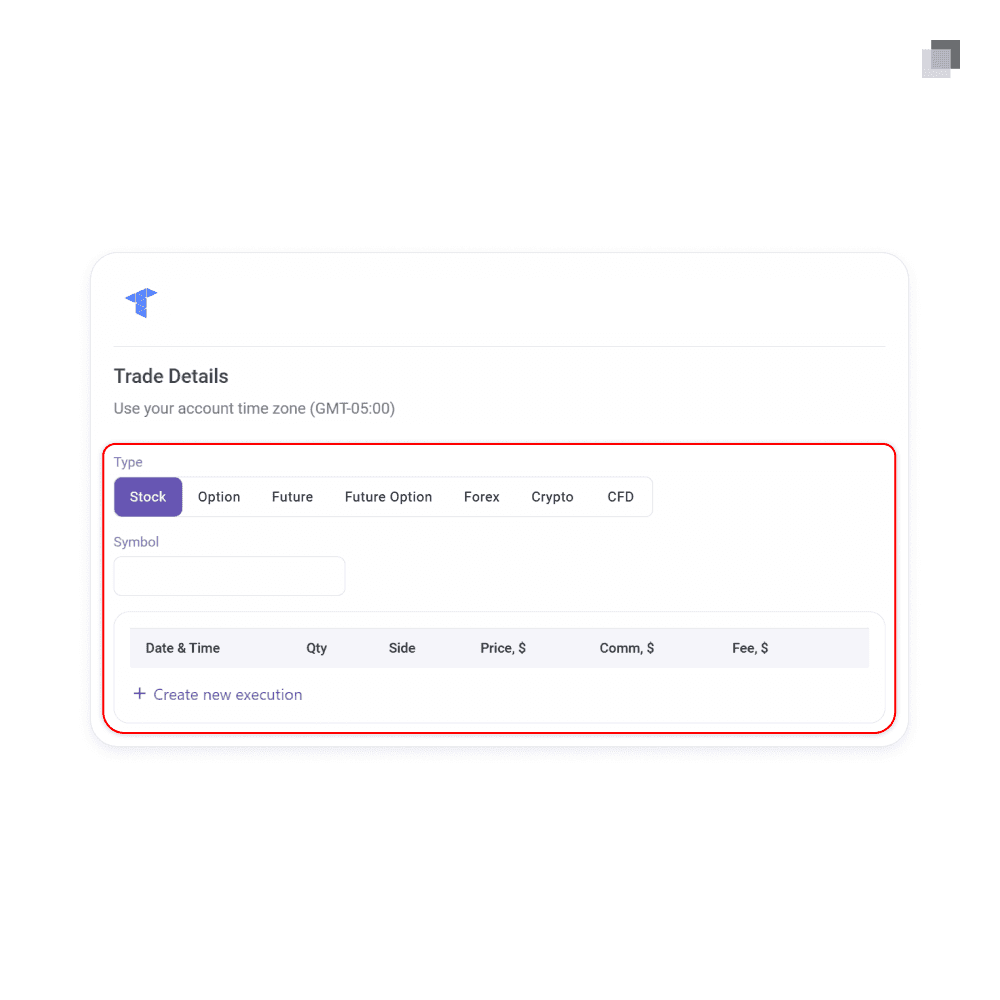
While individually adding trades to TradeZella is possible, it is not the recommended route. This is a tedious process and is prone to mistakes. You will be asked to select the market type, choose the symbol, and input all the trade information for each execution. This will appear as the default option when you attempt to add a trade to an account, but you should always first attempt to either auto-sync a brokerage or import a CSV file.
While individually adding trades to TradeZella is possible, it is not the recommended route. This is a tedious process and is prone to mistakes. You will be asked to select the market type, choose the symbol, and input all the trade information for each execution. This will appear as the default option when you attempt to add a trade to an account, but you should always first attempt to either auto-sync a brokerage or import a CSV file.
While individually adding trades to TradeZella is possible, it is not the recommended route. This is a tedious process and is prone to mistakes. You will be asked to select the market type, choose the symbol, and input all the trade information for each execution. This will appear as the default option when you attempt to add a trade to an account, but you should always first attempt to either auto-sync a brokerage or import a CSV file.
Account Management
Account Management
Account Management
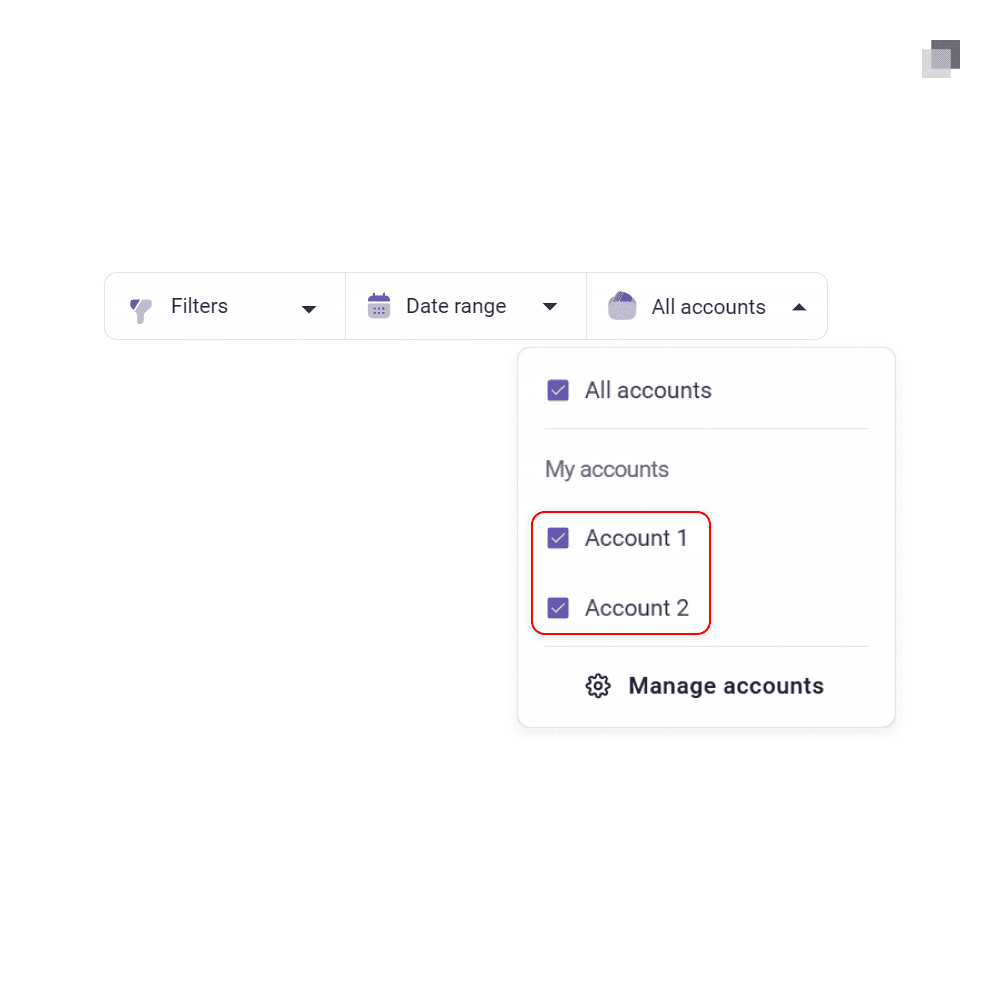
If you have multiple trading accounts with varying purposes, TradeZella allows you to manage them in separate accounts for accurate and organized tracking. This remains optional for all users.
If you have multiple trading accounts with varying purposes, TradeZella allows you to manage them in separate accounts for accurate and organized tracking. This remains optional for all users.
If you have multiple trading accounts with varying purposes, TradeZella allows you to manage them in separate accounts for accurate and organized tracking. This remains optional for all users.
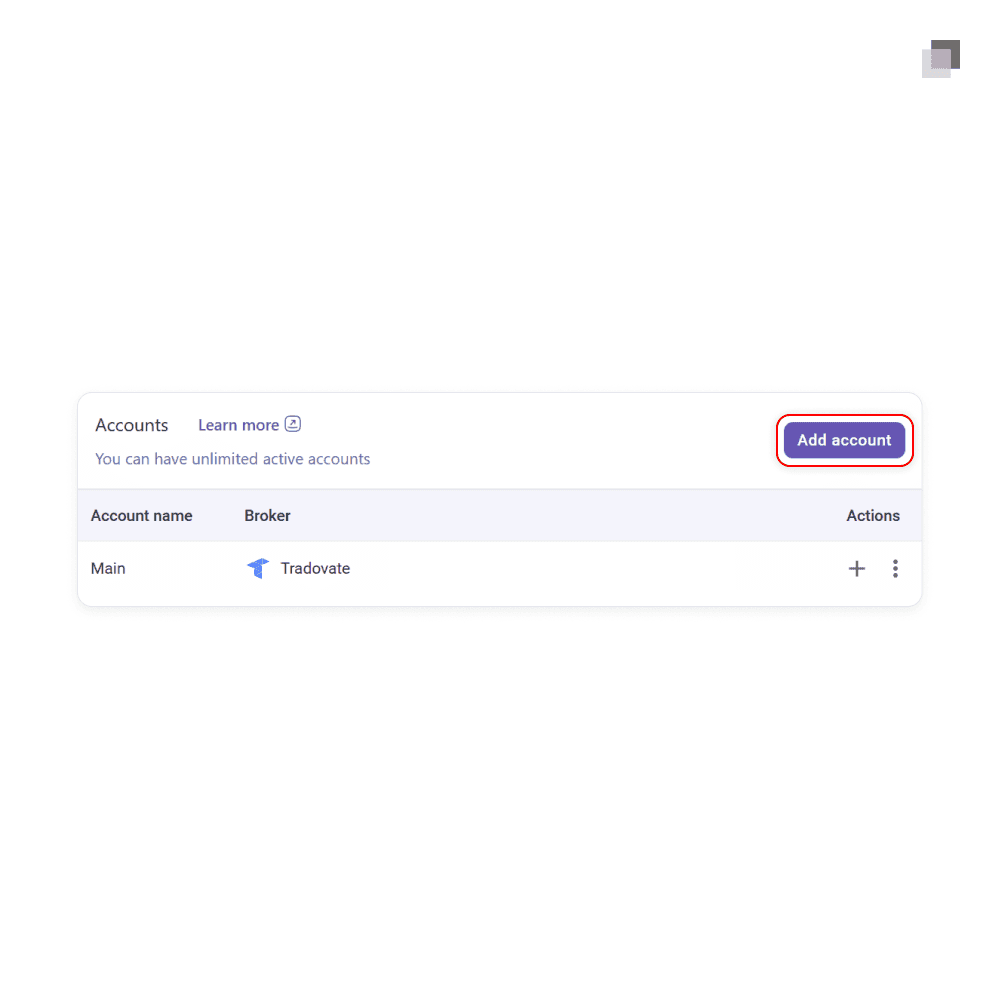
In the accounts tab within the settings, you simply add an account and repeat the same steps as before. Each accounts has its own unique sync and import settings which allows you to set it up as needed. You can create up to ten accounts on your profile.
In the accounts tab within the settings, you simply add an account and repeat the same steps as before. Each accounts has its own unique sync and import settings which allows you to set it up as needed. You can create up to ten accounts on your profile.
In the accounts tab within the settings, you simply add an account and repeat the same steps as before. Each accounts has its own unique sync and import settings which allows you to set it up as needed. You can create up to ten accounts on your profile.
Custom Dashboard
Custom Dashboard
Custom Dashboard
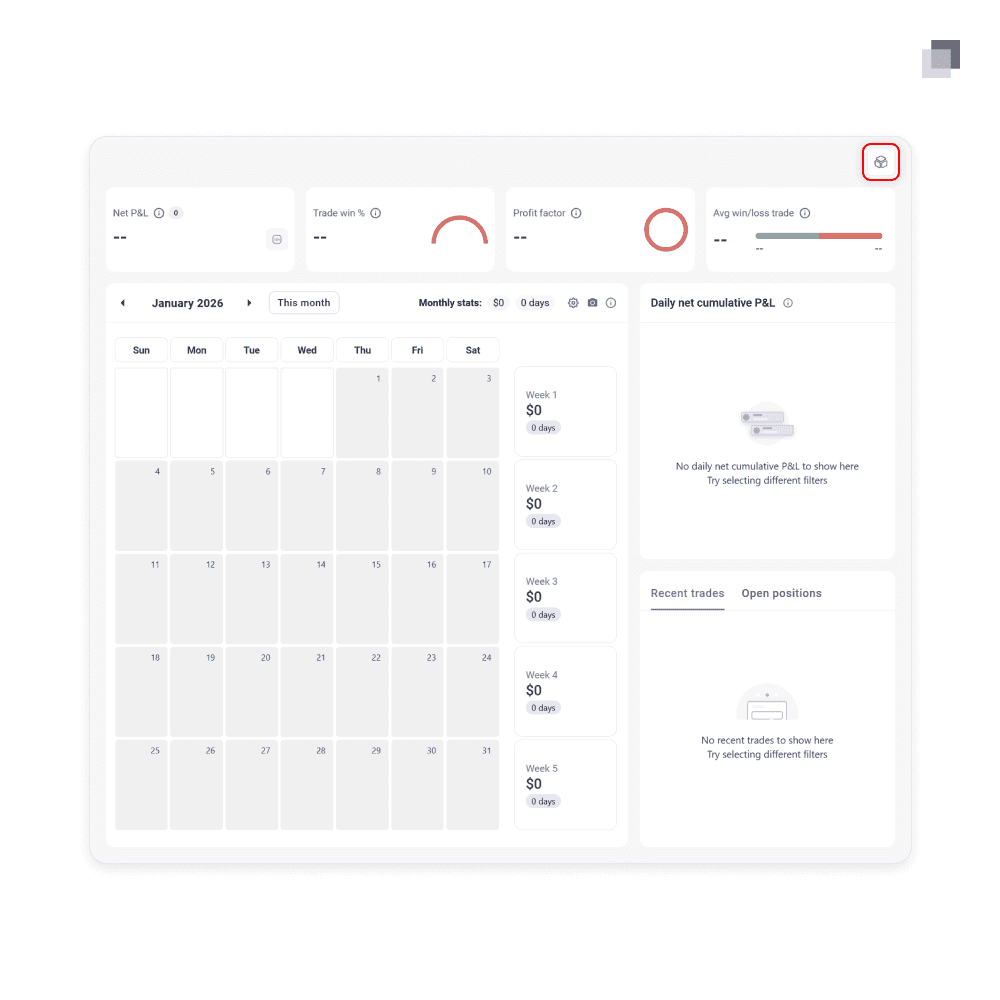
The TradeZella dashboard is where you will land upon each new login and provides an overview of your performance within a defined date range. You will be provided a default view of this page, but it can be customized to your preference and needs.
The TradeZella dashboard is where you will land upon each new login and provides an overview of your performance within a defined date range. You will be provided a default view of this page, but it can be customized to your preference and needs.
The TradeZella dashboard is where you will land upon each new login and provides an overview of your performance within a defined date range. You will be provided a default view of this page, but it can be customized to your preference and needs.
In the top right of the dashboard, there is an icon that can be clicked which allows you to either create a new template or edit an existing one. While you can explore each widget and choose the variation which works best for you, we will recommend a baseline structure to have.
In the top right of the dashboard, there is an icon that can be clicked which allows you to either create a new template or edit an existing one. While you can explore each widget and choose the variation which works best for you, we will recommend a baseline structure to have.
In the top right of the dashboard, there is an icon that can be clicked which allows you to either create a new template or edit an existing one. While you can explore each widget and choose the variation which works best for you, we will recommend a baseline structure to have.
Net P&L
Trade win %
Profit factor
Avg win/loss trade
Daily net cumulative P&L
Recent trades
Advanced calendar
Net P&L
Trade win %
Profit factor
Avg win/loss trade
Daily net cumulative P&L
Recent trades
Advanced calendar
Net P&L
Trade win %
Profit factor
Avg win/loss trade
Daily net cumulative P&L
Recent trades
Advanced calendar

The standard for trading education and guidance
2026 The Market Lens - All Rights Reserved
The standard for trading education and guidance
2026 The Market Lens - All Rights Reserved
The standard for trading education and guidance