


Backtesting
Backtesting
Backtesting
Breakdown of the backtesting tool
Breakdown of the backtesting tool
Breakdown of the backtesting tool
Lesson 5
Lesson 5
25 min
25 min
Backtesting Logic
Backtesting Logic
Backtesting Logic
The backtesting section of TradeZella provides a variety of features that are important to understand. Backtesting is not only something we recommend, but a specific step in stage one that is expected of you. Doing this creates a zero risk market experience and allows you to build up a larger sample size under your model in a short period of time. Unlike a live market where it takes months, with backtesting it can be done in days or hours.
The backtesting section of TradeZella provides a variety of features that are important to understand. Backtesting is not only something we recommend, but a specific step in stage one that is expected of you. Doing this creates a zero risk market experience and allows you to build up a larger sample size under your model in a short period of time. Unlike a live market where it takes months, with backtesting it can be done in days or hours.
The backtesting section of TradeZella provides a variety of features that are important to understand. Backtesting is not only something we recommend, but a specific step in stage one that is expected of you. Doing this creates a zero risk market experience and allows you to build up a larger sample size under your model in a short period of time. Unlike a live market where it takes months, with backtesting it can be done in days or hours.
Backtesting only has the intended impact if it is approached under the correct mindset. It is not something that should be rushed through or done unseriously. The goal is to move through price slowly and treat it with the same intent as executing in a live market. Otherwise, your results and data will not be represented accurately.
Backtesting only has the intended impact if it is approached under the correct mindset. It is not something that should be rushed through or done unseriously. The goal is to move through price slowly and treat it with the same intent as executing in a live market. Otherwise, your results and data will not be represented accurately.
Backtesting only has the intended impact if it is approached under the correct mindset. It is not something that should be rushed through or done unseriously. The goal is to move through price slowly and treat it with the same intent as executing in a live market. Otherwise, your results and data will not be represented accurately.
Creating New Session
Creating New Session
Creating New Session
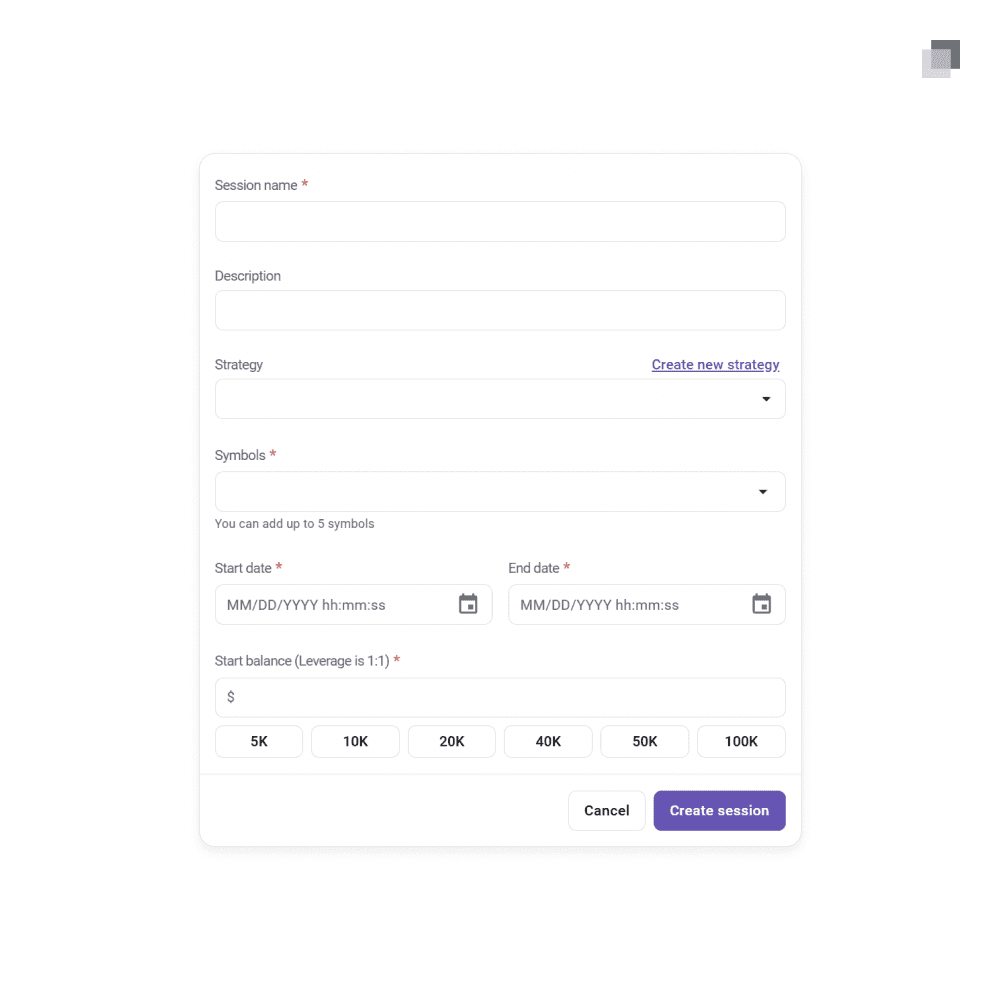
Find the create session button the top right of the page. Once clicked, a form will show on screen with the following sections.
Find the create session button the top right of the page. Once clicked, a form will show on screen with the following sections.
Find the create session button the top right of the page. Once clicked, a form will show on screen with the following sections.
Session name: Use a short and recognizable name
Description: Optional for any details you want to add
Strategy: Attach your strategy to the backtesting session
Symbols: Select any symbols to be traded during the session
Start and end date: Use a time window that is not too recent
Start balance: Use a clear starting point such as $10k, $50k, or $100k
Session name: Use a short and recognizable name
Description: Optional for any details you want to add
Strategy: Attach your strategy to the backtesting session
Symbols: Select any symbols to be traded during the session
Start and end date: Use a time window that is not too recent
Start balance: Use a clear starting point such as $10k, $50k, or $100k
Session name: Use a short and recognizable name
Description: Optional for any details you want to add
Strategy: Attach your strategy to the backtesting session
Symbols: Select any symbols to be traded during the session
Start and end date: Use a time window that is not too recent
Start balance: Use a clear starting point such as $10k, $50k, or $100k
The session will be saved to your account and you will be redirected into the active backtesting session page.
The session will be saved to your account and you will be redirected into the active backtesting session page.
The session will be saved to your account and you will be redirected into the active backtesting session page.
Time Intervals
Time Intervals
Time Intervals
There are several methods of moving through price action inside the TradeZella backtesting tool that you must understand to properly navigate the charts.
There are several methods of moving through price action inside the TradeZella backtesting tool that you must understand to properly navigate the charts.
There are several methods of moving through price action inside the TradeZella backtesting tool that you must understand to properly navigate the charts.
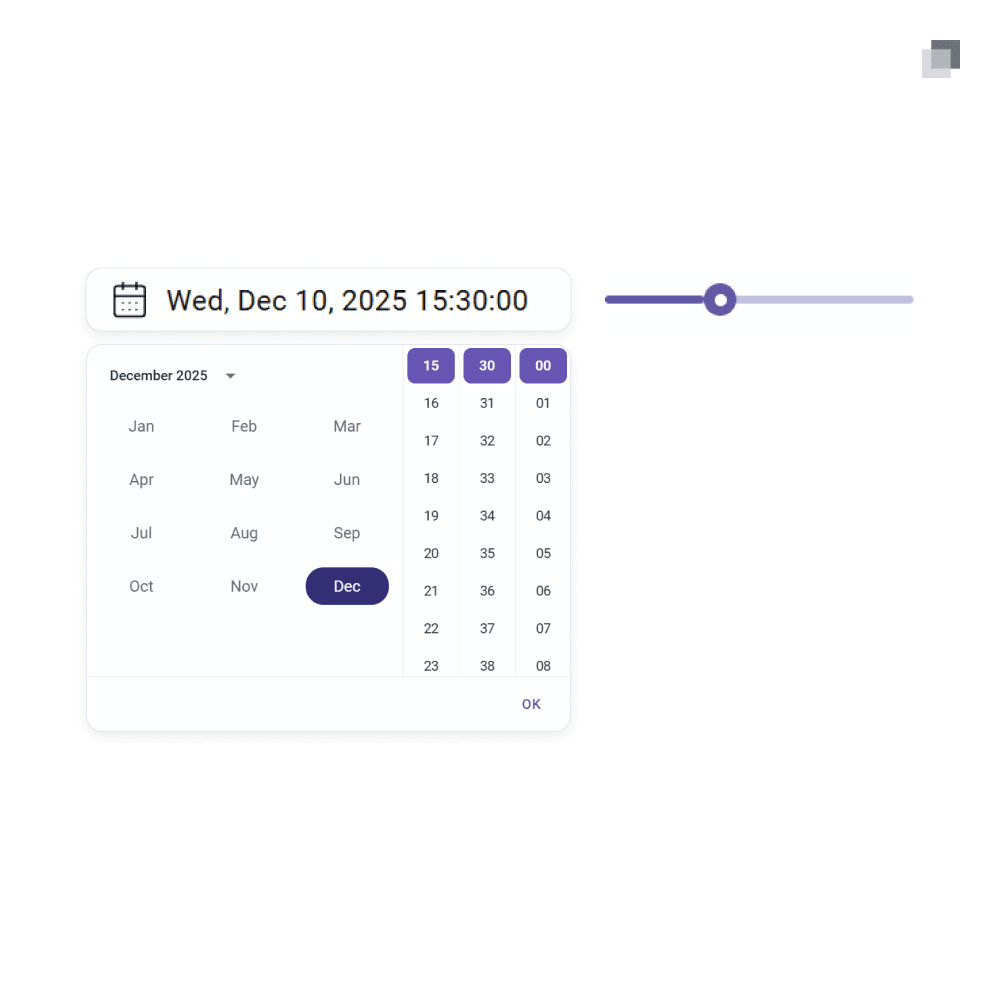
On the top center of the page, you will see the date and time that is currently being viewed on the chart. This can be used to to quickly move to a specific period in time by either using the dropdown calendar or the time slider to the right. Only use this method to move ahead if there is a reason to jump days ahead in the market.
On the top center of the page, you will see the date and time that is currently being viewed on the chart. This can be used to to quickly move to a specific period in time by either using the dropdown calendar or the time slider to the right. Only use this method to move ahead if there is a reason to jump days ahead in the market.
On the top center of the page, you will see the date and time that is currently being viewed on the chart. This can be used to to quickly move to a specific period in time by either using the dropdown calendar or the time slider to the right. Only use this method to move ahead if there is a reason to jump days ahead in the market.
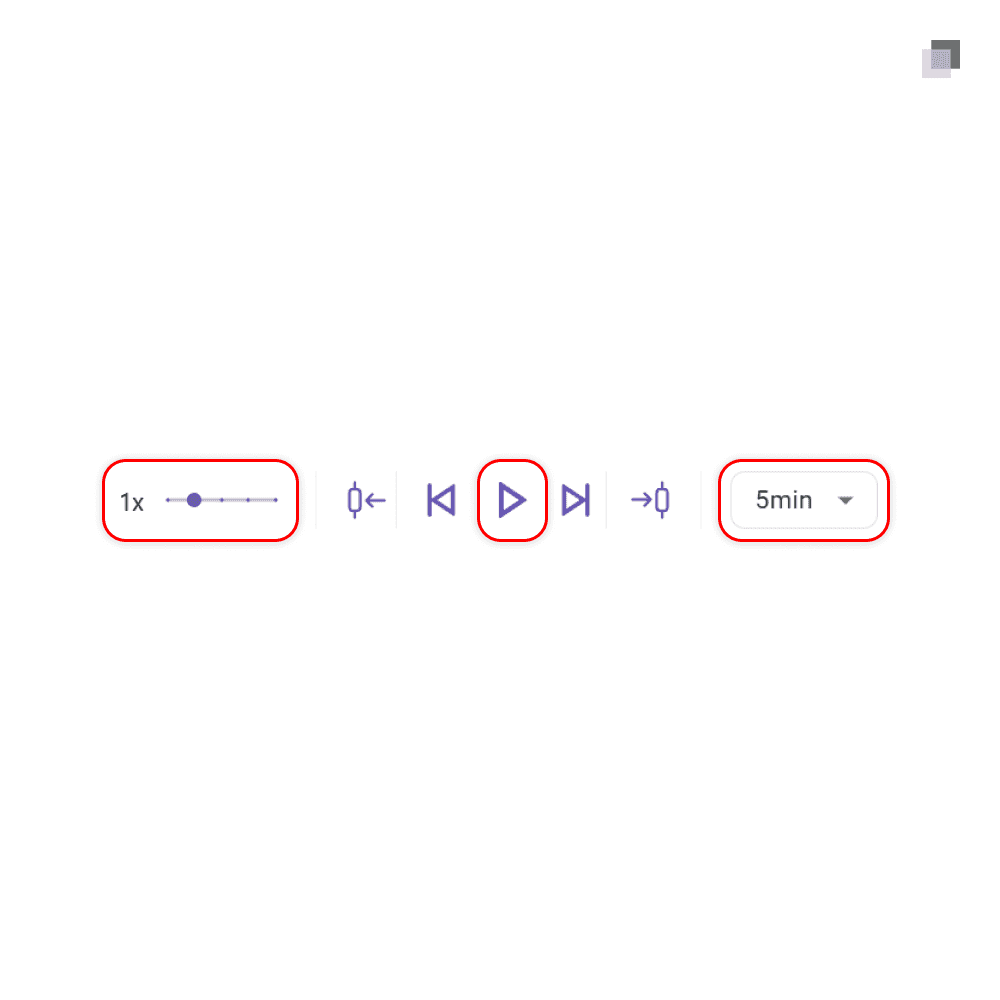
The second method to skipping forward in time is more commonly used for active backtesting. Below the chart in the center of the page, you will see a play button alongside other options. This is where you will interact the most. Below we will walk you through how each button works in relation to the chart above.
The second method to skipping forward in time is more commonly used for active backtesting. Below the chart in the center of the page, you will see a play button alongside other options. This is where you will interact the most. Below we will walk you through how each button works in relation to the chart above.
The second method to skipping forward in time is more commonly used for active backtesting. Below the chart in the center of the page, you will see a play button alongside other options. This is where you will interact the most. Below we will walk you through how each button works in relation to the chart above.
Clicking the play button will begin printing new candles on the chart based on the timeframe being shown to the right. For example, if the timeframe is set to 5m, regardless of the timeframe that the chart above is on, the chart will skip ahead by continuously printing 5m candles. There is also a slider to the left that determines the speed at which the candles print. Slower is always ideal as it allows you to react to the developing price action in a way that better represents a live market.
Clicking the play button will begin printing new candles on the chart based on the timeframe being shown to the right. For example, if the timeframe is set to 5m, regardless of the timeframe that the chart above is on, the chart will skip ahead by continuously printing 5m candles. There is also a slider to the left that determines the speed at which the candles print. Slower is always ideal as it allows you to react to the developing price action in a way that better represents a live market.
Clicking the play button will begin printing new candles on the chart based on the timeframe being shown to the right. For example, if the timeframe is set to 5m, regardless of the timeframe that the chart above is on, the chart will skip ahead by continuously printing 5m candles. There is also a slider to the left that determines the speed at which the candles print. Slower is always ideal as it allows you to react to the developing price action in a way that better represents a live market.
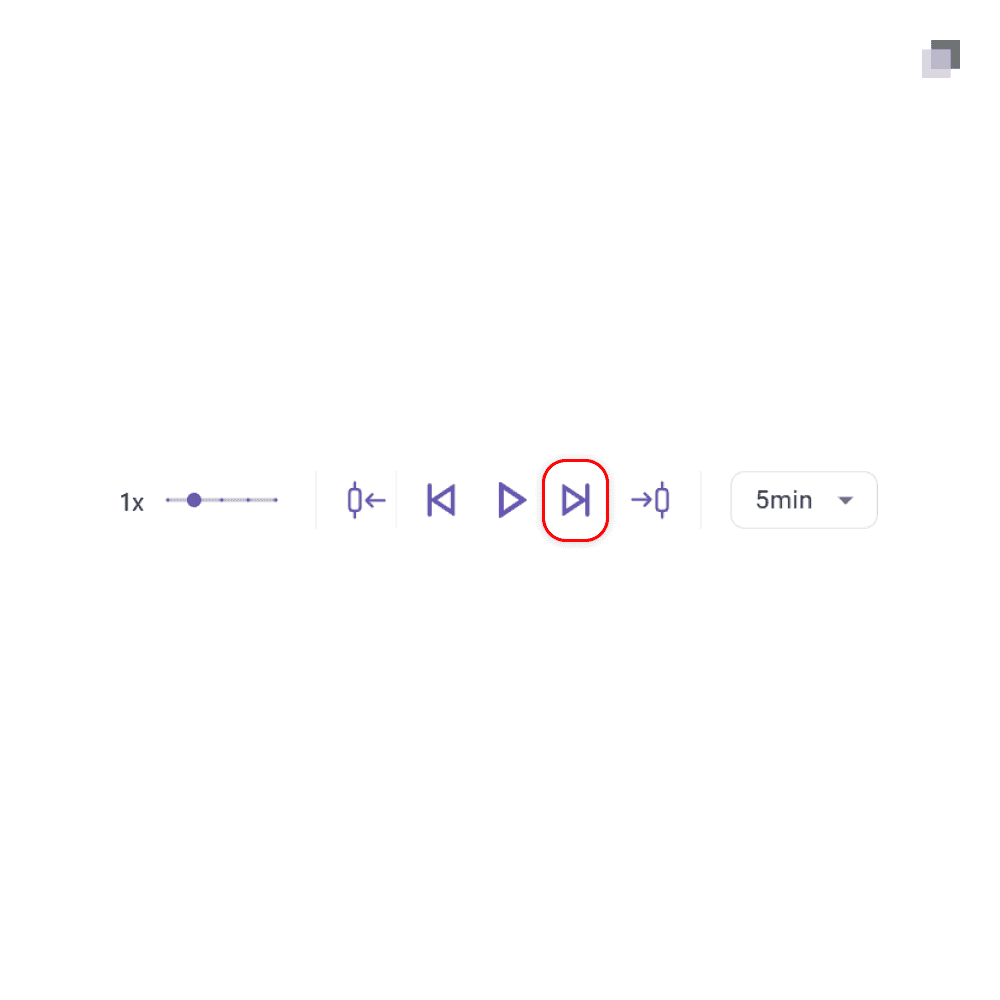
Candles can also be skipping one by one instead of in a continuous manner as described before. While the timeframe interval still has the same function, you can click the button to the right of the play icon which will skip only one candle forward. This is best when you want the candles to pause while you think near a potential moment of execution.
Candles can also be skipping one by one instead of in a continuous manner as described before. While the timeframe interval still has the same function, you can click the button to the right of the play icon which will skip only one candle forward. This is best when you want the candles to pause while you think near a potential moment of execution.
Candles can also be skipping one by one instead of in a continuous manner as described before. While the timeframe interval still has the same function, you can click the button to the right of the play icon which will skip only one candle forward. This is best when you want the candles to pause while you think near a potential moment of execution.
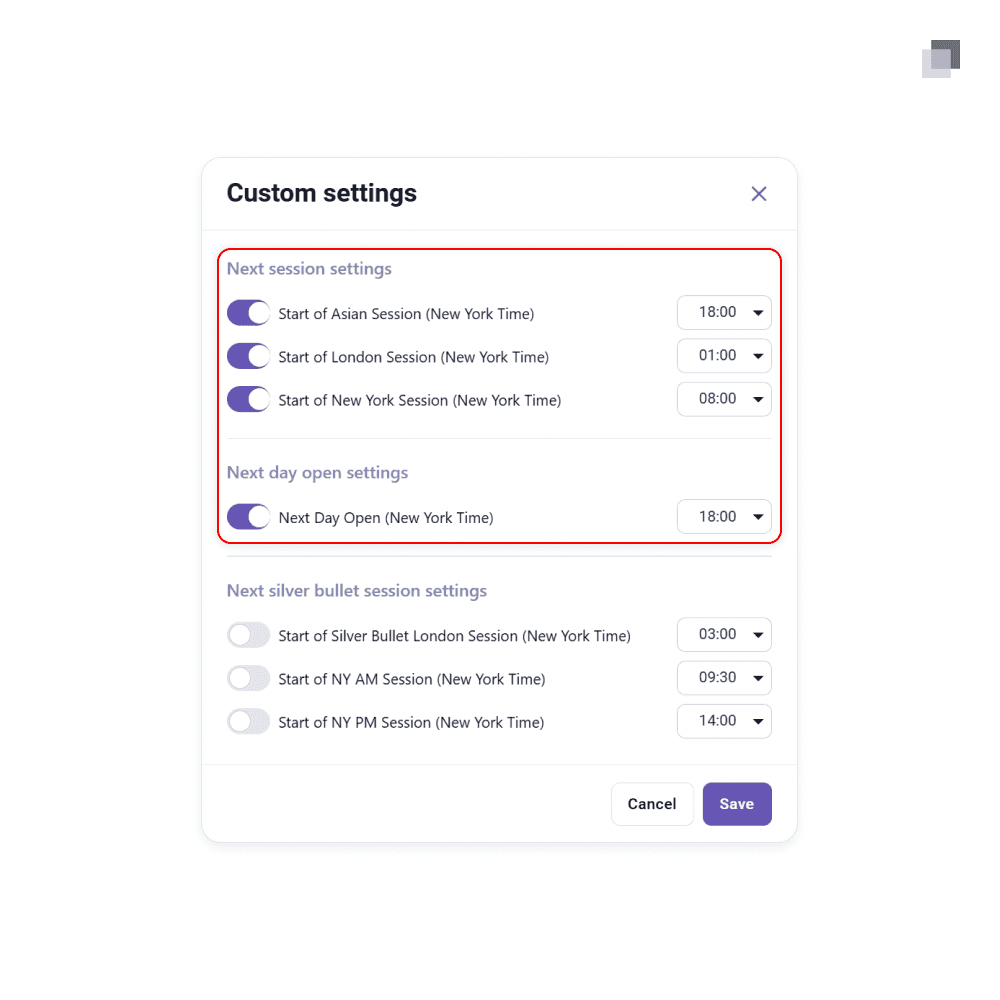
The final way to move forward in price is through session times. Clicking on the candlestick icon to the right of the play buttons, you will find the options to skip forward to a certain session in the current or following trading day. Click on customize settings to select what you want to be shown here and what specific time each session is. Set these following times.
The final way to move forward in price is through session times. Clicking on the candlestick icon to the right of the play buttons, you will find the options to skip forward to a certain session in the current or following trading day. Click on customize settings to select what you want to be shown here and what specific time each session is. Set these following times.
The final way to move forward in price is through session times. Clicking on the candlestick icon to the right of the play buttons, you will find the options to skip forward to a certain session in the current or following trading day. Click on customize settings to select what you want to be shown here and what specific time each session is. Set these following times.
Start of Asia Session: 18:00
Start of London Session: 01:00
Start of New York Session: 08:00
Next Day Open: 18:00
Start of Asia Session: 18:00
Start of London Session: 01:00
Start of New York Session: 08:00
Next Day Open: 18:00
Start of Asia Session: 18:00
Start of London Session: 01:00
Start of New York Session: 08:00
Next Day Open: 18:00
Select all of these times to be on and turn off any others unless they are of use to you. These will be the options that show up going forward when using this feature.
Select all of these times to be on and turn off any others unless they are of use to you. These will be the options that show up going forward when using this feature.
Select all of these times to be on and turn off any others unless they are of use to you. These will be the options that show up going forward when using this feature.
Executing Trades
Executing Trades
Executing Trades
The position tool is used to put on trades inside a TradeZella backtesting session for simple placement of entry, stop loss, and take profit.
The position tool is used to put on trades inside a TradeZella backtesting session for simple placement of entry, stop loss, and take profit.
The position tool is used to put on trades inside a TradeZella backtesting session for simple placement of entry, stop loss, and take profit.
Once an setup is presented on the chart and is ready to be entered, place your position tool on the chart. The middle line should be on the current market price, the stop loss should be at the invalidation point of the entry signature, and the profit target should be placed on the objective. Then click the place order icon in the top right to open the place order panel. The market price alongside the stop loss and profit target will already be entered in. From there, select the amount of contracts to reach the desired dollar risk and place the trade.
Once an setup is presented on the chart and is ready to be entered, place your position tool on the chart. The middle line should be on the current market price, the stop loss should be at the invalidation point of the entry signature, and the profit target should be placed on the objective. Then click the place order icon in the top right to open the place order panel. The market price alongside the stop loss and profit target will already be entered in. From there, select the amount of contracts to reach the desired dollar risk and place the trade.
Once an setup is presented on the chart and is ready to be entered, place your position tool on the chart. The middle line should be on the current market price, the stop loss should be at the invalidation point of the entry signature, and the profit target should be placed on the objective. Then click the place order icon in the top right to open the place order panel. The market price alongside the stop loss and profit target will already be entered in. From there, select the amount of contracts to reach the desired dollar risk and place the trade.
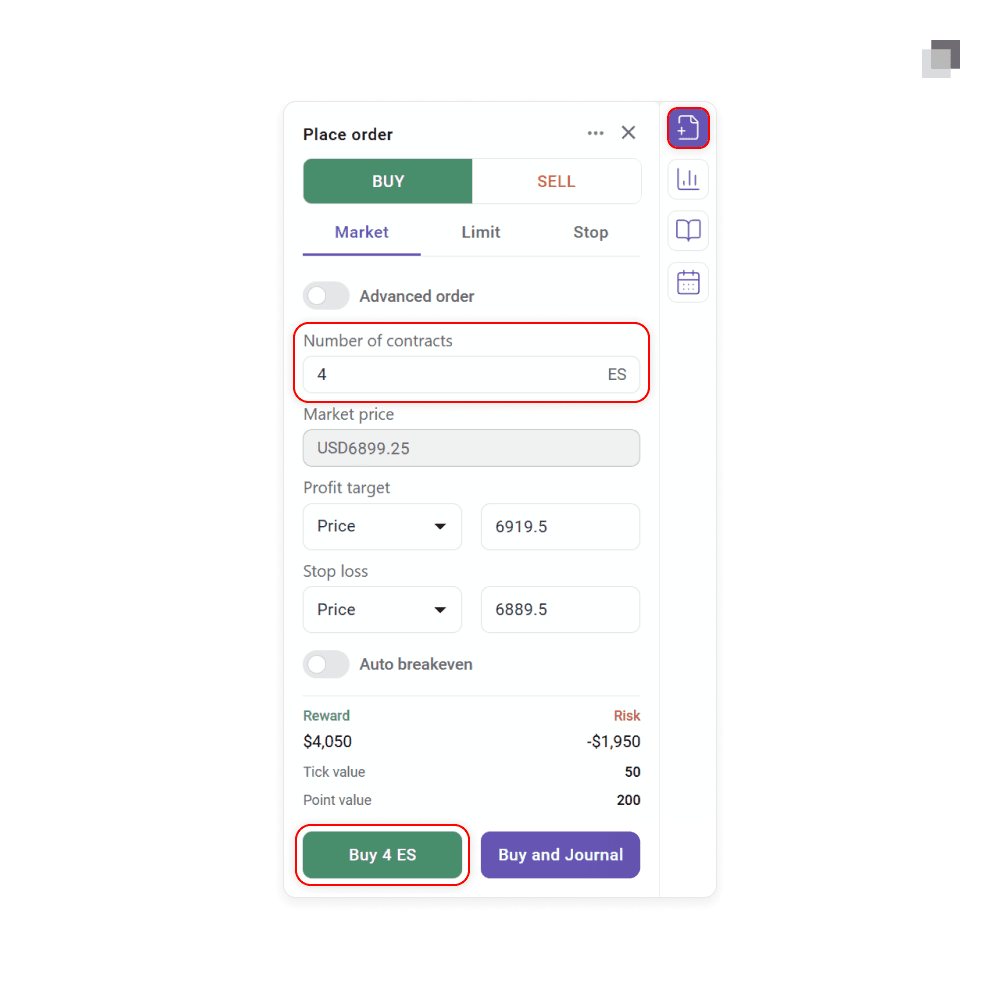
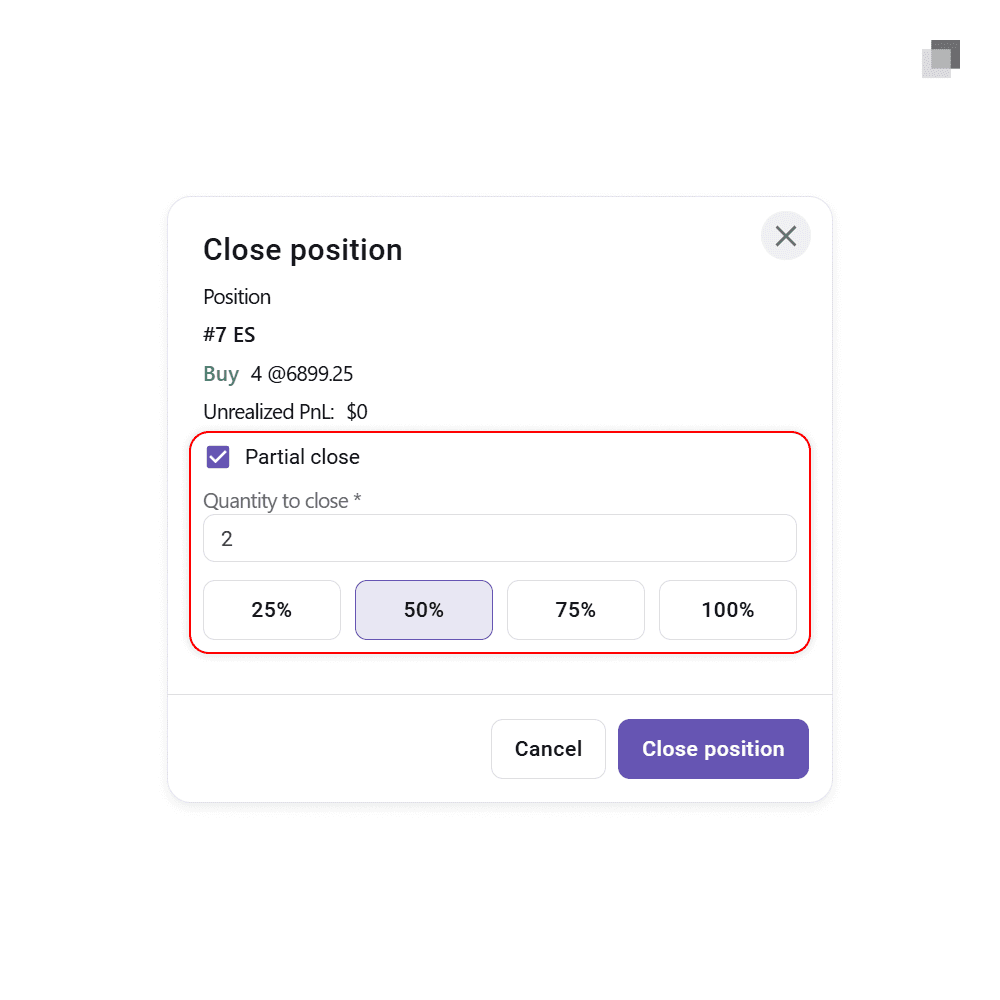
If it is part of your system, trades can be managed while they are open. Clicking on the position at your market entry price allows you to either fully close the position or partially scale out. Your stop loss can also be dragged to any area in price as the trade plays out.
If it is part of your system, trades can be managed while they are open. Clicking on the position at your market entry price allows you to either fully close the position or partially scale out. Your stop loss can also be dragged to any area in price as the trade plays out.
If it is part of your system, trades can be managed while they are open. Clicking on the position at your market entry price allows you to either fully close the position or partially scale out. Your stop loss can also be dragged to any area in price as the trade plays out.
Journaling Trades
Journaling Trades
Journaling Trades
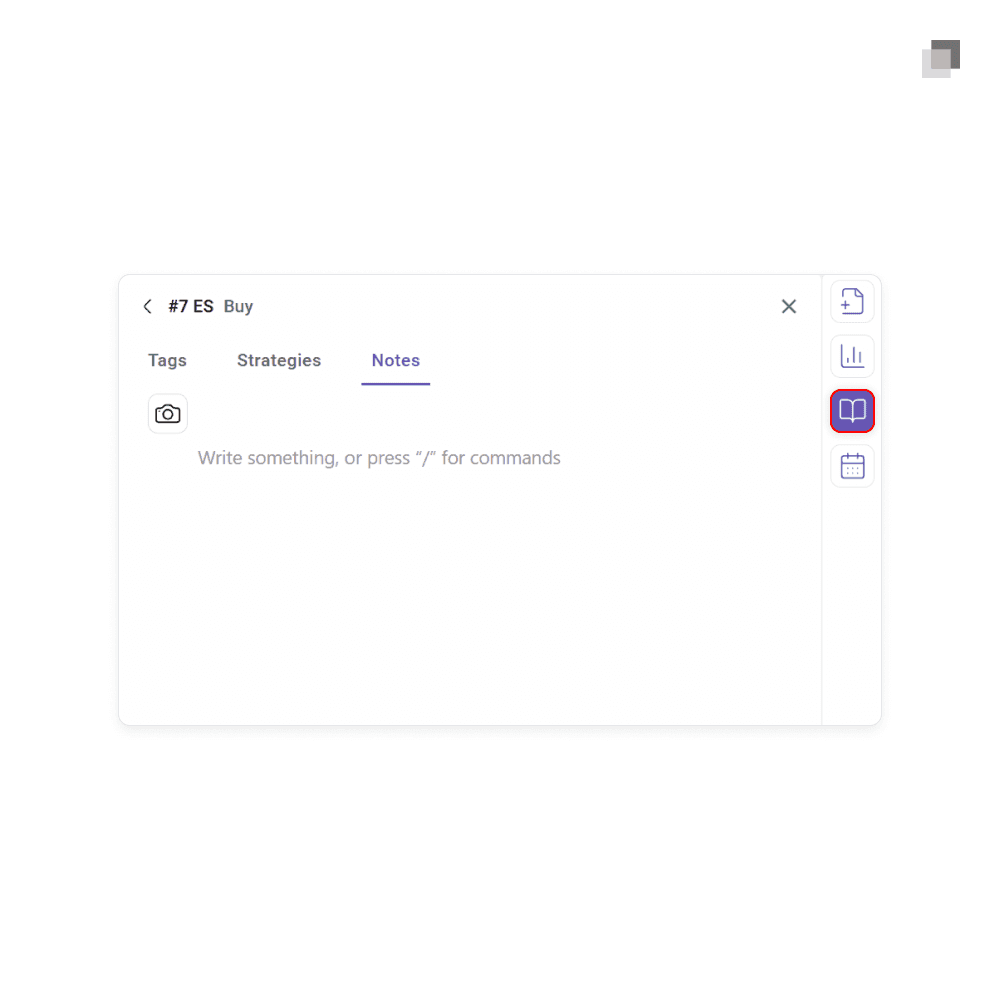
After each trade is placed, you should take the time to add the necessary tags, select the rules followed under your strategy, and take any notes that are needed. Find the closed positions tab on the bottom of the page and select the execution that was placed. A panel will open on the right side of your screen where you can do each of those three things.
After each trade is placed, you should take the time to add the necessary tags, select the rules followed under your strategy, and take any notes that are needed. Find the closed positions tab on the bottom of the page and select the execution that was placed. A panel will open on the right side of your screen where you can do each of those three things.
After each trade is placed, you should take the time to add the necessary tags, select the rules followed under your strategy, and take any notes that are needed. Find the closed positions tab on the bottom of the page and select the execution that was placed. A panel will open on the right side of your screen where you can do each of those three things.

The standard for trading education and guidance
2026 The Market Lens - All Rights Reserved
The standard for trading education and guidance
2026 The Market Lens - All Rights Reserved
The standard for trading education and guidance